If you need clean audio for editing in Logic Pro, Final Cut, Audition, or another DAW, WAV is still the simplest target format on Mac. The safest workflow is to download the YouTube video locally, then convert it offline so you stay in control of both quality and privacy.
When WAV makes sense
- Editing audio in a DAW where uncompressed files are easiest to handle.
- Archiving a source without adding another lossy compression pass.
- Sharing audio with collaborators who expect a standard WAV file.
If storage matters more than universal compatibility, FLAC is often the better lossless option. It stays full-quality while taking up less disk space.
How to convert YouTube to WAV on Mac
Download the YouTube video
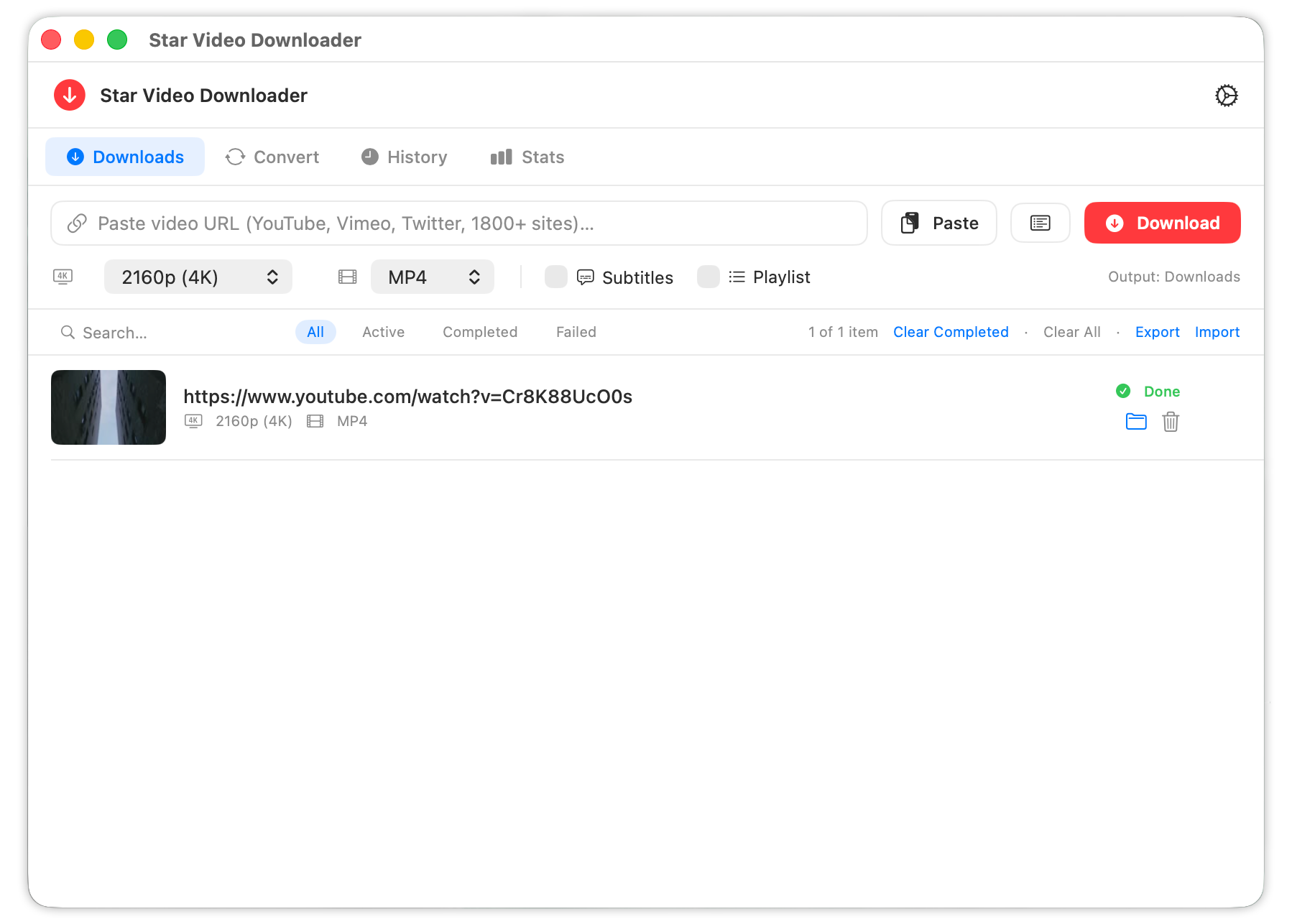
Paste the video URL into Star Video Downloader and save the highest quality available. Better source quality gives you the best possible audio extraction later.
Open the Convert tab
Drag the downloaded file into the converter or choose it from Finder. This keeps the whole process local on your Mac.
Choose WAV as the output format
Select WAV, then run the conversion. The output is saved next to the original file so you can compare sizes and quality immediately.
Tip: If you do not specifically need WAV, compare it with FLAC first. FLAC is also lossless, but the files are much smaller for long interviews, podcasts, and lectures.
Why this beats online YouTube-to-WAV sites
- No fake download buttons or pop-up redirects.
- No upload or duration caps for long videos.
- No server-side re-encoding decisions you cannot inspect.
- No need to trust a random site with your URLs or browsing habits.
Best next steps after conversion
Once the WAV file is ready, you can edit it directly, convert it again to MP3 for portable listening, or keep a WAV master and export smaller delivery copies later. If you are comparing lossless formats, start with the broader audio guide in YouTube to MP3 Converter for Mac.
Frequently asked questions
Can I convert YouTube to WAV on Mac?
Yes. Download the video first, then use the built-in converter to extract WAV locally on your Mac.
Is WAV better than MP3?
WAV is better for editing and archiving because it is uncompressed. MP3 is better when you need smaller files and wide playback compatibility.
Will WAV improve the original YouTube quality?
No. WAV preserves what is available in the source, but it cannot restore quality that was already compressed in the original stream.
Extract WAV Audio Offline on Your Mac
Download the video, convert locally, and keep your files private from start to finish.